Get Started with the Cluster
This guide walks you through obtaining a Mila account, connecting to the cluster, and setting up the tools you need to run jobs. Follow the steps in order.
Obtain your Mila account (@mila.quebec)
- Ask your supervisor how to get invited into the Mila organization and obtain
your
@mila.quebecaccount. - After your supervisor submits the application, you will receive a confirmation email from IT support with instructions to access your account and connect to the cluster.
Still waiting for your account?
If you feel like this is taking longer than expected, contact MyMila support.
Enable your cluster access
- Read the IT Onboarding Guide and complete and submit the quiz.
- Once you'll pass the quiz, you'll get contacted either by email or on Slack with the information to connect to the cluster for the first time. Take note of your cluster's username. It can take up to 48h for your access to the cluster to be effective.
- An email will be sent for you to activate your Multi-Factor Authentication.
Set up Multi-Factor Authentication (MFA)
Cluster access requires two factors: your SSH key (first factor) and a second factor (TOTP, push notification, or email token). You must complete MFA setup before you can connect via SSH.
Get your registration token
You will receive an automated email with a one-time registration token. Use it as soon as possible; it expires after use.
First-time MFA setup
-
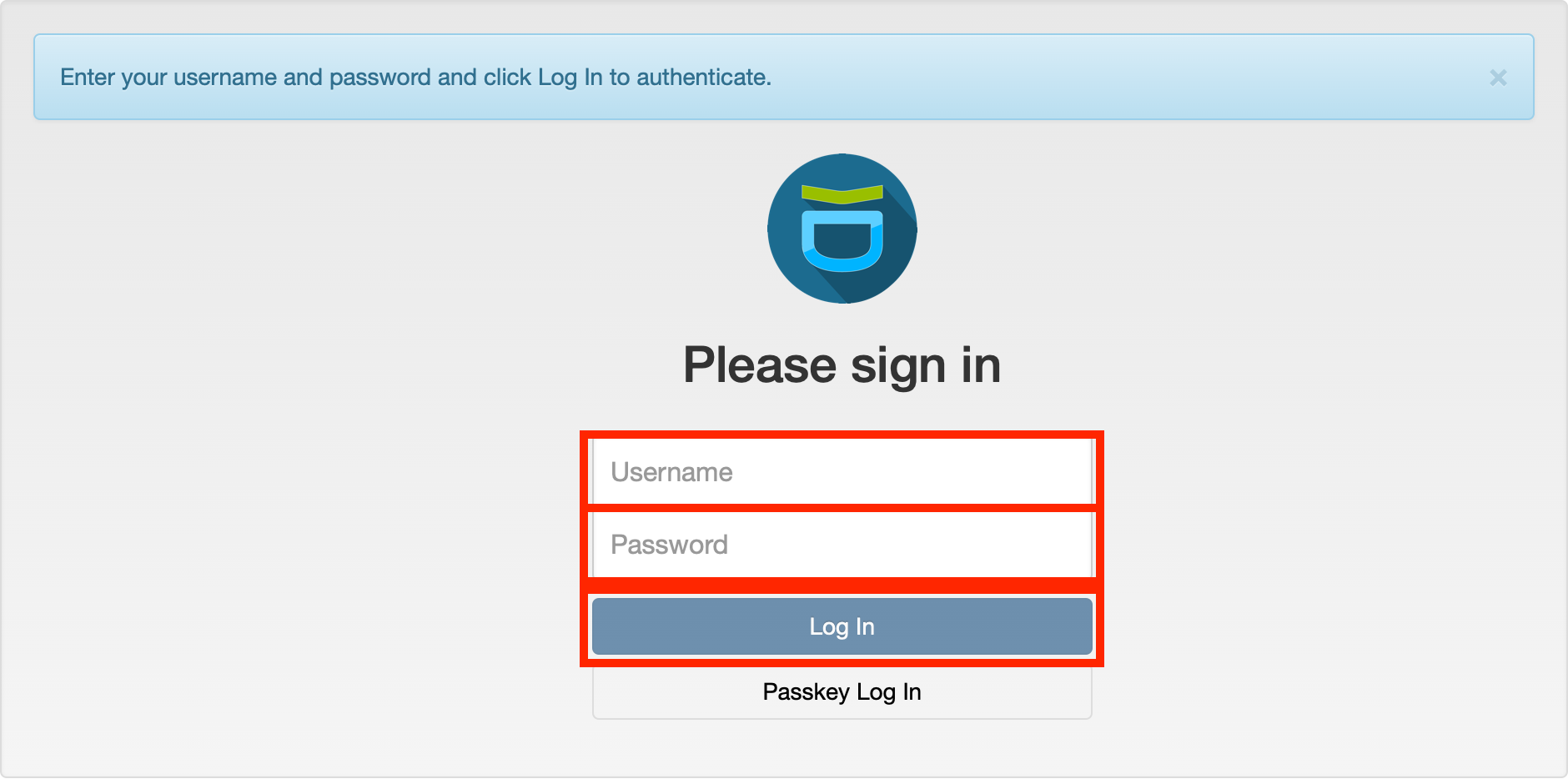
Go to https://mfa.mila.quebec.
-
Username: your cluster username.
-
Password: enter the registration token from the email (not your account password).
-
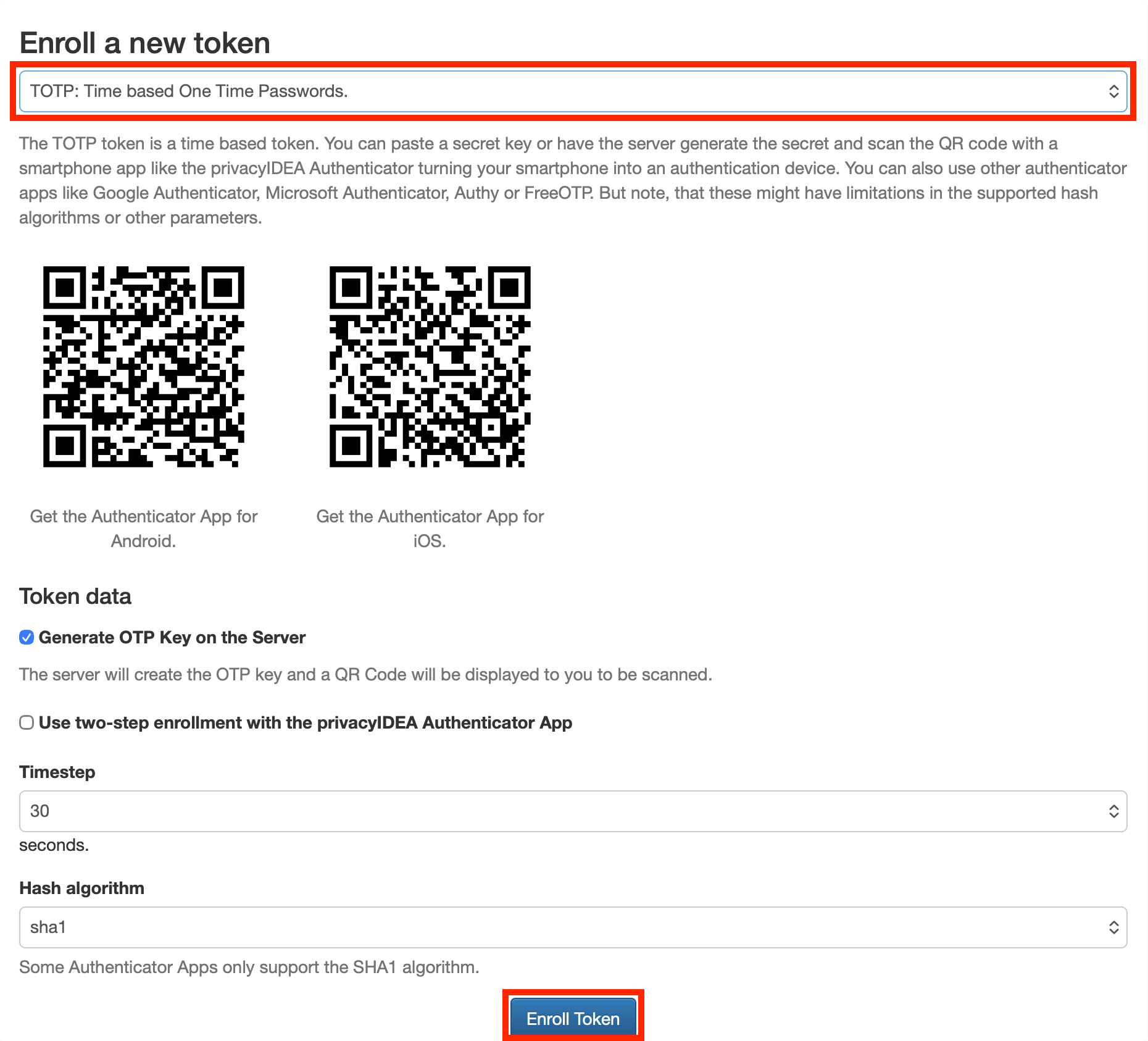
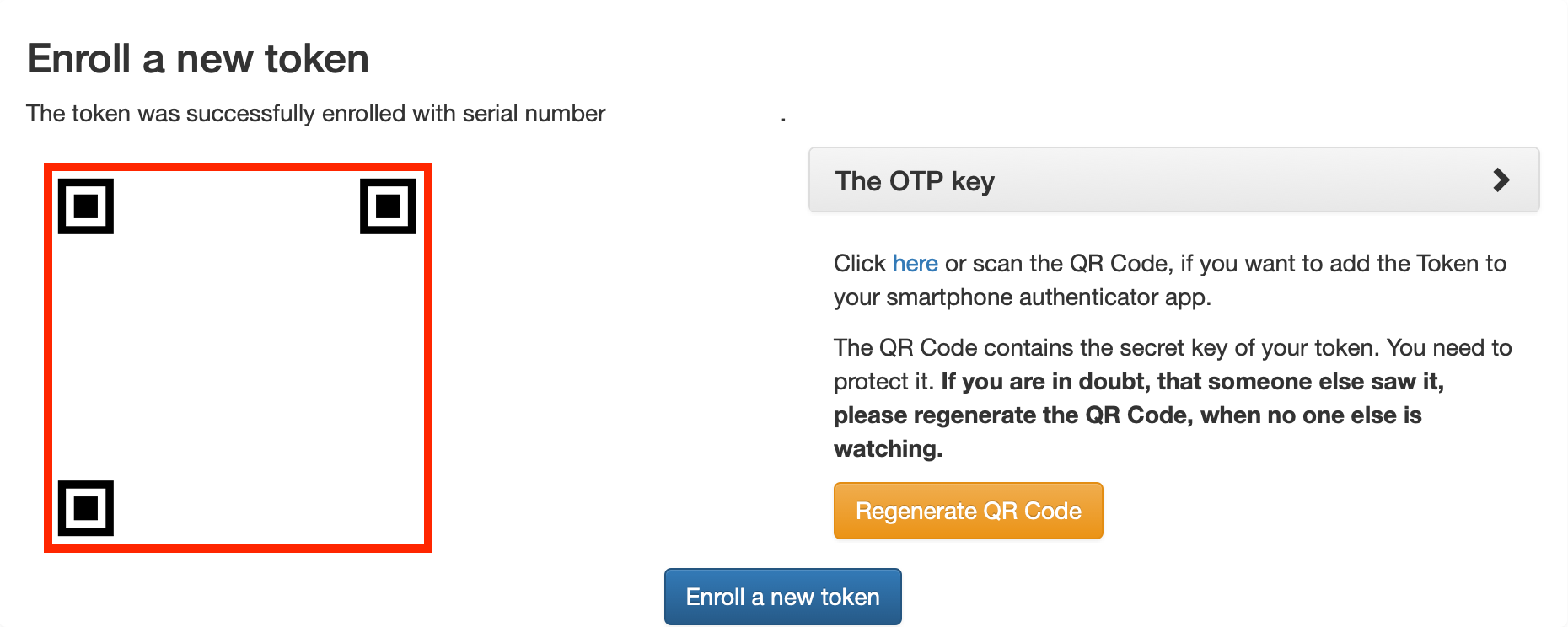
After logging in, immediately add at least one TOTP token to your account:
Set up TOTP before you leave
After this first visit, the MFA web portal only accepts a TOTP code. If you leave without setting up TOTP or Push, you will be locked out and will need a new registration token from IT support.
I'm using Windows, how do I install WSL?
Windows users need WSL (Windows Subsystem for Linux) to run the commands in this guide (curl, ssh, uv, etc.).
Steps:
- Open PowerShell.
- Run:
- Restart your computer when prompted.
- After restart, WSL will finish setup. You may be asked to create a Linux username and password.
- Open Ubuntu from the Start menu to get a Linux terminal.
Verify: In the WSL terminal, run ls and curl --version to confirm you have a working shell.
curl 8.4.0 (x86_64-pc-linux-gnu) libcurl/8.4.0 OpenSSL/3.0.9 zlib/1.2.13 brotli/1.0.9 zstd/1.5.5 c-ares/1.19.1 nghttp2/1.51.0
Release-Date: 2023-10-11
Protocols: dict file ftp ftps http https imap imaps mqtt pop3 pop3s rtsp smtp smtps tftp
Features: alt-svc AsynchDNS brotli HSTS HTTP2 HTTPS-proxy IPv6 Largefile libz NTLM SSL threadsafe TLS-SRP UnixSockets zstd
Note
All commands in this guide (uv, milatools, ssh) should be run
inside the WSL terminal, not in Windows PowerShell or Command Prompt.
Install uv on your local machine
uv is a fast Python package manager and workflow tool that serves as a drop-in
replacement for pip and virtualenv, allowing you to quickly install project
dependencies, manage packages, and create isolated Python environments.
On your local machine, run:
References
Connect to the cluster
Prerequisite: It is required to complete the Obtain your Mila account and Enable your cluster access sections before connecting to the cluster.
Install milatools
Install milatools locally (after uv is installed on your local machine):
See the milatools README for more details.
Configure milatools
Run mila init with your username and password ready. This sets up your SSH config, public keys, and passwordless auth.
Checking ssh config
Created the ssh directory at /Users/username/.ssh
Created /Users/username/.ssh/config
Do you have an account on the Mila cluster? [y/n] (y): y
What's your username on the Mila cluster?
: MILA_USERNAME
The following modifications will be made to /Users/username/.ssh/config:
[...]
 ───────────────────────────────────────────────────────────────────────────────────────────────────────────────────
                                                     MILA SETUP
 ───────────────────────────────────────────────────────────────────────────────────────────────────────────────────
Checking connection to the mila login nodes...
✅ Able to `ssh mila`
❌ Local /Users/username/.ssh/id_ed25519_mila.pub is not in ~/.ssh/authorized_keys on the mila cluster, or file
permissions are incorrect. Attempting to fix this now.
Checking connection to compute nodes on the mila cluster. This is required for `mila code` to work properly.
[18:16:21] (mila) $ mkdir -p ~/.ssh                                                                  remote_v2.py:115
[18:16:22] (mila) $ echo 'ssh-ed25519                                                                remote_v2.py:115
           XXXXXXXXXXXXXXXXXXXXXXXXXXXXXXXXXXXXXXXXXXXXXXXXXXXXXXXXXXXXXXXXXXXX From home to Mila'
           >> ~/.ssh/authorized_keys
           (mila) $ chmod 600 ~/.ssh/authorized_keys                                                 remote_v2.py:115
[18:16:23] (mila) $ chmod 700 ~/.ssh                                                                 remote_v2.py:115
           (mila) $ chmod go-w ~                                                                     remote_v2.py:115
✅ Your public key is now present in ~/.ssh/authorized_keys on the mila cluster, and file permissions are correct.
✅ Local /Users/username/.ssh/id_ed25519_mila.pub is in ~/.ssh/authorized_keys on the mila cluster and file
permissions are correct. You should now be able to connect to compute nodes with SSH.
Verify your connection
Open a terminal and run:
================================================================================


                .:.
        .*#*: :#%%%+...-*
        :#%#: -%%%%*  :. -
   .=+*=:   .:..---  -.   -          ..             ..   ..   ..
  :%%%%%%= *%%%*...==......-=       =%%+          :%%%  *%%= .%%=
  :%%%%%%+ #%%%#   ::.     -::      =%%%=        .#%%%  .--  .%%=
   :+##*-   :-:   :  ::  .-  .:     =%%%%:       #%%%%   ::  .%%=    .:---:
   :=-  =**= .*%%#=   .: :     :    =%%+%#.     *%**%%  -%%: .%%=  :#%#++*%%+
   %%%-:%%%%:=%%%%%....-*......:*   =%%.+%#    =%# +%%  -%%: .%%=  .-:    .%%-
    :-. :==:  -+*+:   -. -    ::    =%%. *%*  -%#. +%%  -%%: .%%=  .=*#####%%=
   +%%%%*. .=+=.  -  -    -. -.     =%%. .#%+.%%-  +%%  -%%: .%%= .#%+.   .%%=
  -%%%%%%* %%%%%...==......-+       =%%.  :%%#%=   +%%  -%%: .%%= .%%+.  :*%%=
   *%%%%#: =#%#=  .::.     :.       -**.   -**+    =**  :**.  **-  :+#%%#*-**=
    .:-: -+=   =**+. ::  .-
        +%%%+ =%%%%#  .:.:
         -=-  .+##*:...-+

                * Documentation:    https://docs.mila.quebec
                * Monitoring:       https://dashboard.server.mila.quebec
                * Support:          http://it-support.mila.quebec/
                                    or email it-support@mila.quebec

================================================================================
====================== Cluster Login-node: Login-2 =======================
================================================================================

 System information as of Mon Mar 16 06:30:05 PM EDT 2026

  System load:  0.39               Processes:              1415
  Usage of /:   40.5% of 38.09GB   Users logged in:        78
  Memory usage: 70%                IPv4 address for ens18: 172.16.2.152
  Swap usage:   0%


==================== NEWS ======================================================
================================================================================

Last login: Fri Feb 27 09:29:48 2026 from 74.58.126.98
You should land on a Mila login node. If this works, your connection is set up
correctly. If not, check again the steps to install and configure
milatools
Install uv on the cluster
Once you can connect via SSH to the Mila cluster, run the same install command as before but on a login node:
Next steps
Once you have access to the cluster, head to the following sections to run your first job and train your first model:
-
Run your first job on the cluster with PyTorch using VSCode on a GPU compute node.
-
Train a ResNet18 on CIFAR-10 on a single GPU using
sbatch.