Add Mila Docs context to AI assistants
all_docs_condensed.md is a single-file distillation of the full Mila
cluster documentation — covering cluster access, Slurm, storage, GPU
selection, Python environments, experiment tracking, and more. Providing
this file to any LLM chat assistant gives that assistant an accurate,
Mila-specific knowledge base, making it possible to resolve cluster
issues on the spot without manually searching the documentation.
Before you begin
Requirements
What this guide covers
- Download the condensed reference file
- Load the file into a chat LLM session
- Phrase effective queries for accurate answers
- Interpret and validate the assistant's responses
Download the condensed reference
all_docs_condensed.md is published at the root of the
mila-docs repository. Download
it once and keep it locally — it covers all major cluster topics and fits
within the context window of all current major LLMs.
Download with curl:
Or download manually on GitHub:
- Open the mila-docs repository.
- Click
all_docs_condensed.mdin the file list. -
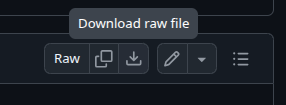
Click the Download raw file button, on the upper right corner of the file.
Load the file into a chat session
Most LLM chat assistants accept either file uploads or large text pastes.
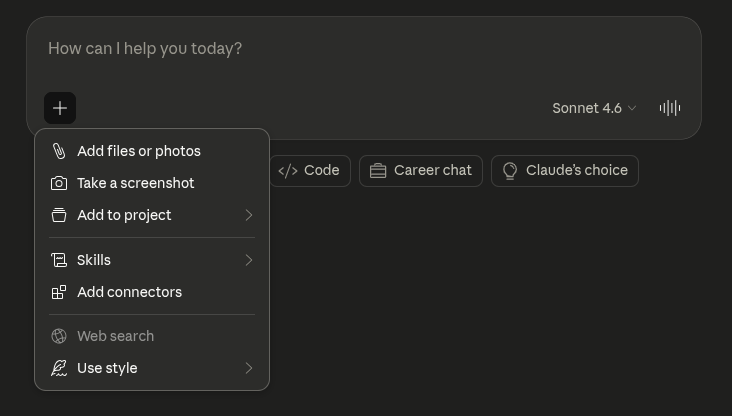
- Open a new conversation at claude.ai.
-
Click the paperclip icon.
-
Select
all_docs_condensed.mdfrom the local filesystem. -
Add a context message alongside the file upload:
-
Ask the first question in the same message or as a follow-up.
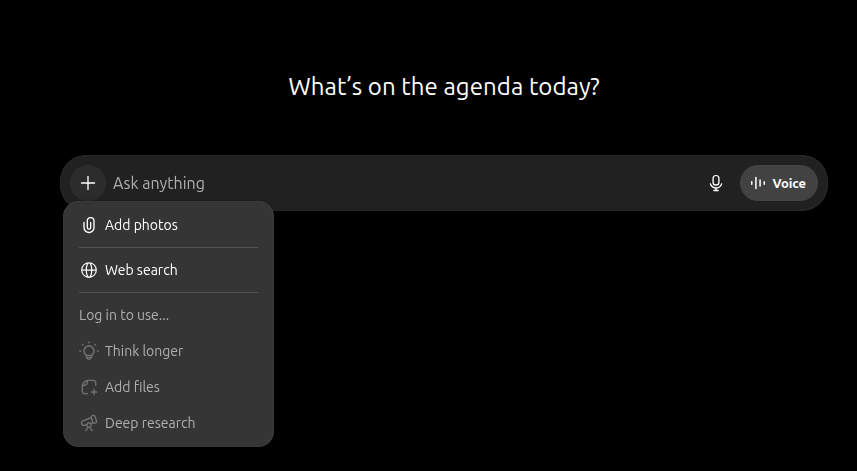
- Open a new conversation at chatgpt.com using GPT-4o or a later model.
- Click the paperclip icon.
- Select
all_docs_condensed.mdfrom the local filesystem. -
Add a context message alongside the upload:
-
Ask the first question in the same message or as a follow-up.
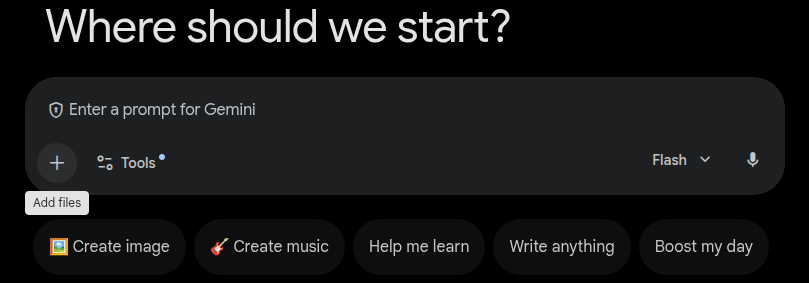
- Open a new conversation at gemini.google.com.
- Click the attachment icon.
- Select
all_docs_condensed.mdfrom the local filesystem. -
Add a context message alongside the upload:
-
Ask the first question in the same message or as a follow-up.
If the assistant does not support file uploads, paste the full
content of all_docs_condensed.md directly into the message.
The file is approximately 1 000 lines and fits within the context
window of all major LLMs.
Paste into the message field and add the context instructions below before asking a question.
Phrase effective queries
Queries that name the specific topic — Slurm commands, partition names, storage paths, or tool names — produce the most accurate responses.
| Goal | Example query |
|---|---|
| Look up a command | What does the savail command do? |
| Understand a partition | What are the resource limits for the unkillable partition? |
| Troubleshoot an error | My job is stuck in PD state — what does that mean? |
| Get setup steps | How do I set up MFA for the Mila cluster? |
| Compare options | When should I use salloc instead of sbatch? |
| Check storage policies | What is the difference between $SCRATCH and $HOME? |
Tip
Include the word Mila or cluster in each query to help the assistant scope its answer to the provided file rather than drawing on general, potentially inaccurate knowledge.
Interpret and validate responses
LLM assistants can occasionally produce responses that look plausible but contain errors — especially for commands with many optional flags or for policies that change over time.
Apply these checks after any response:
- Verify command flags: run
man <command>or<command> --helpon a login node to confirm flag names and syntax. - Check current partition limits: limits can change — verify with
sinfo. - Confirm storage paths: quota policies and storage layout are sometimes updated between condensed-file releases.
Key concepts
all_docs_condensed.md- A single-file distillation of the full Mila technical documentation, designed to fit within the context window of any modern LLM assistant. Covers cluster access, Slurm, storage, Python environments, distributed training, and FAQ.
- Context window
- The maximum amount of text an LLM processes in a single session. Modern assistants support windows large enough to hold the entire condensed file.
- Context message
- An instruction given at the start of a session that tells the assistant how to interpret the provided material. Including a clear context message improves response accuracy.