Set Up Multi-Factor Authentication
This guide covers how to register for MFA and choose an authentication method to be able to complete a cluster login.
What this guide covers
- Choose a second-factor authentication method
- Register on the MFA web portal using an email registration token
Set up Multi-Factor Authentication (MFA)
Multi-Factor Authentication (MFA) adds a security layer beyond SSH keys.
Cluster access requires two factors: an SSH key (first factor) and a second factor (TOTP, push notification, or email token). The MFA setup must be completed before connecting via SSH.
Get your registration token
Look for an email with the subject Votre accès temporaire registrationcode / Your temporary access registrationcode; it contains a one-time registration token that expires after use.
First-time MFA setup
Set up TOTP before leaving
After the first visit, the MFA web portal will only accepts a TOTP code. Leaving without setting up TOTP locks out the account, and a new registration token will be needed from IT support.
-
Go to https://mfa.mila.quebec.
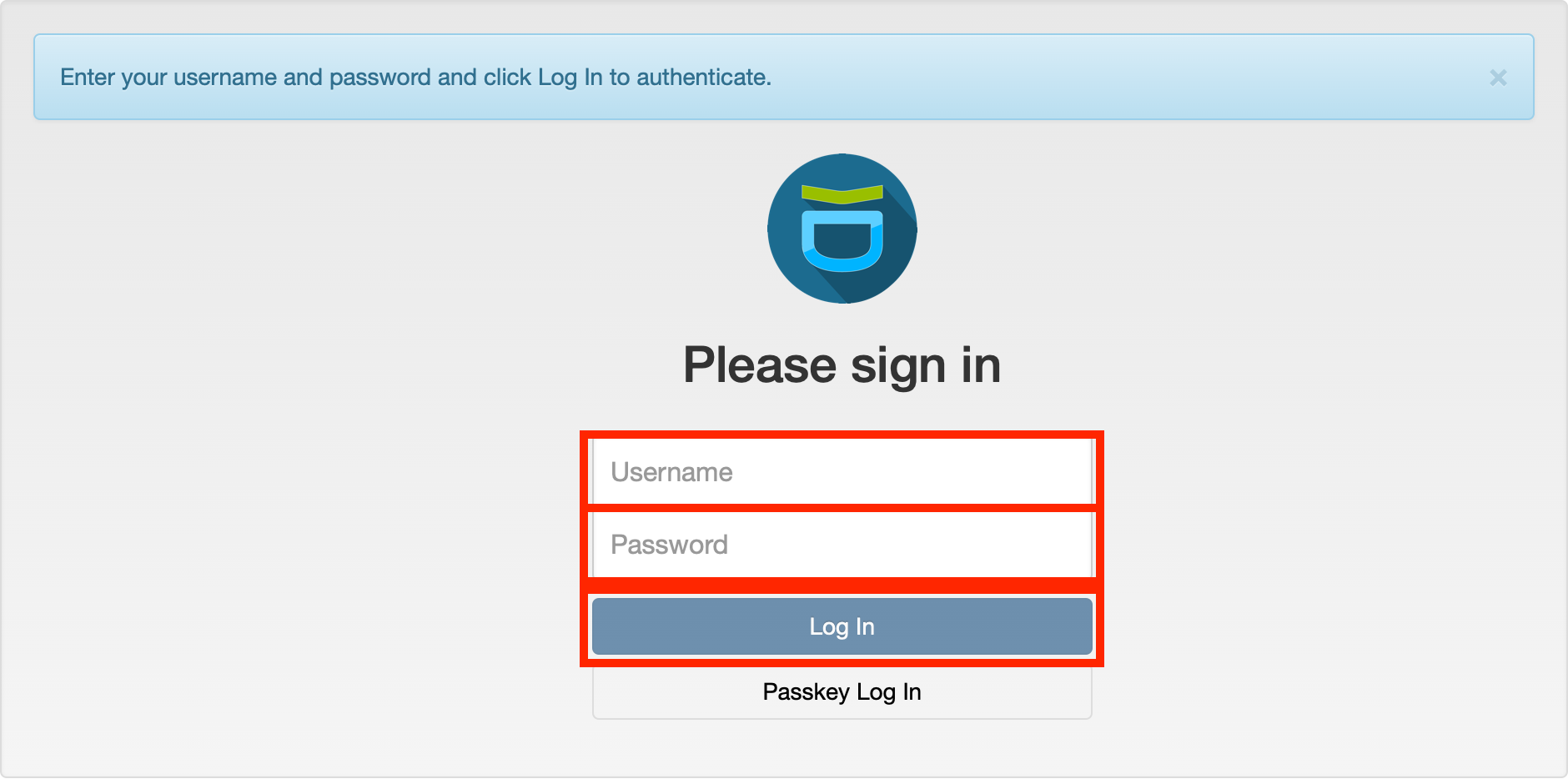
-
Username: your cluster username (not your
@mila.quebecemail address). -
Password: enter the registration token from the email (not your account password).
-
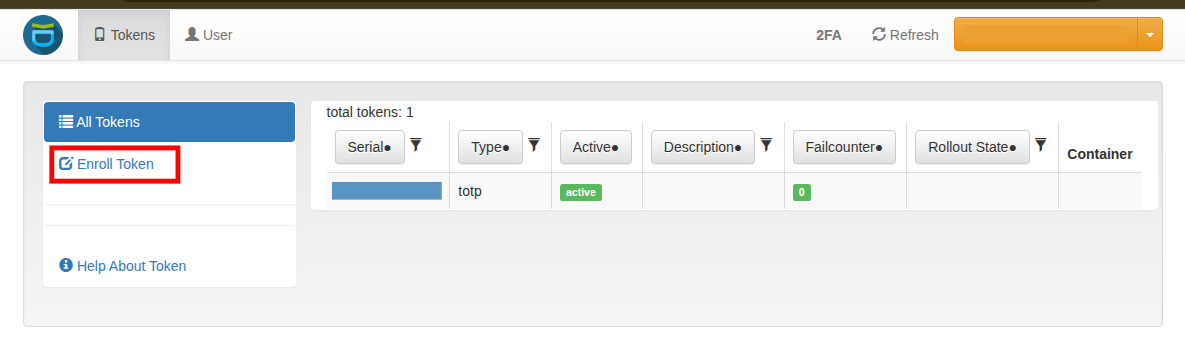
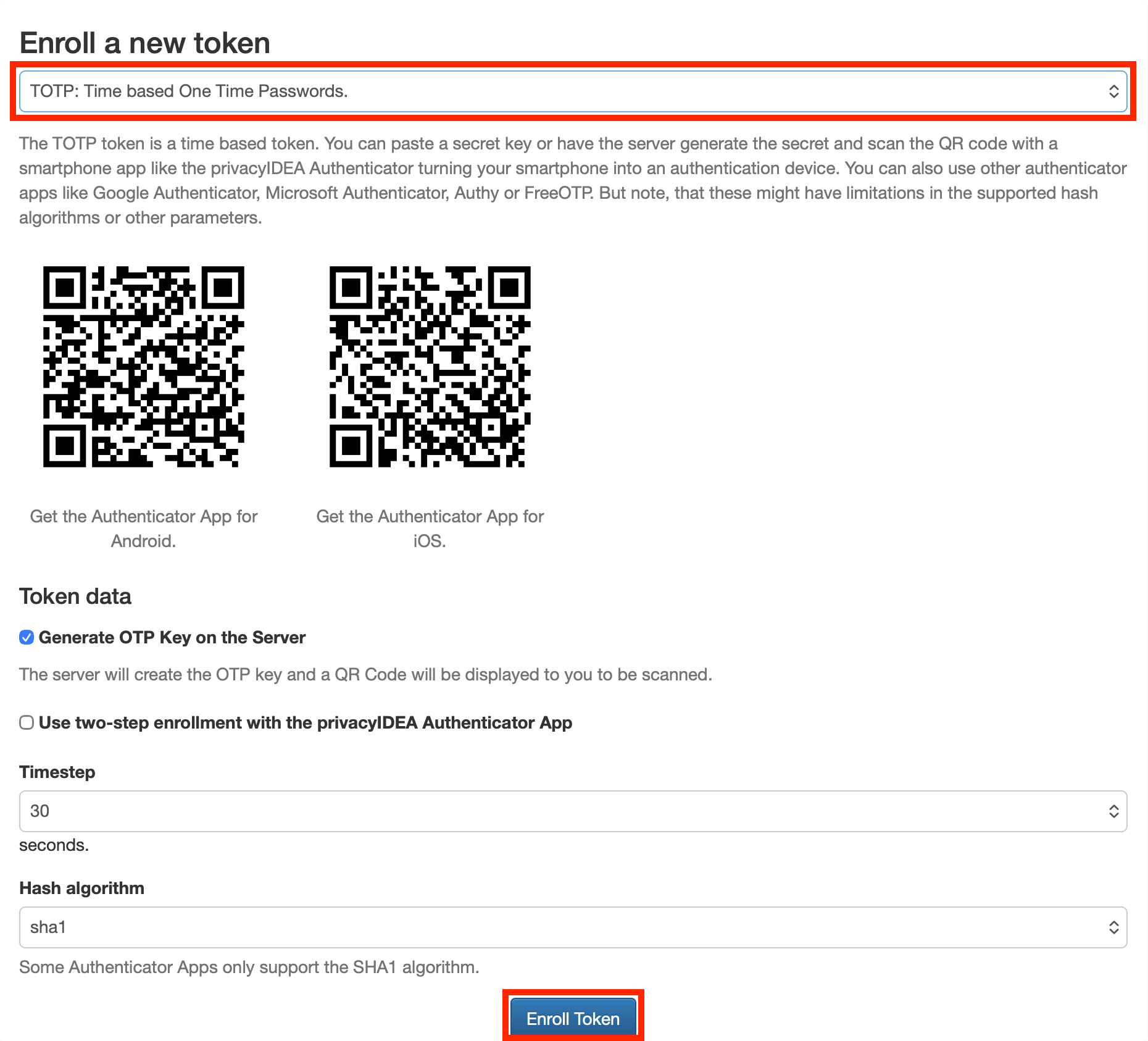
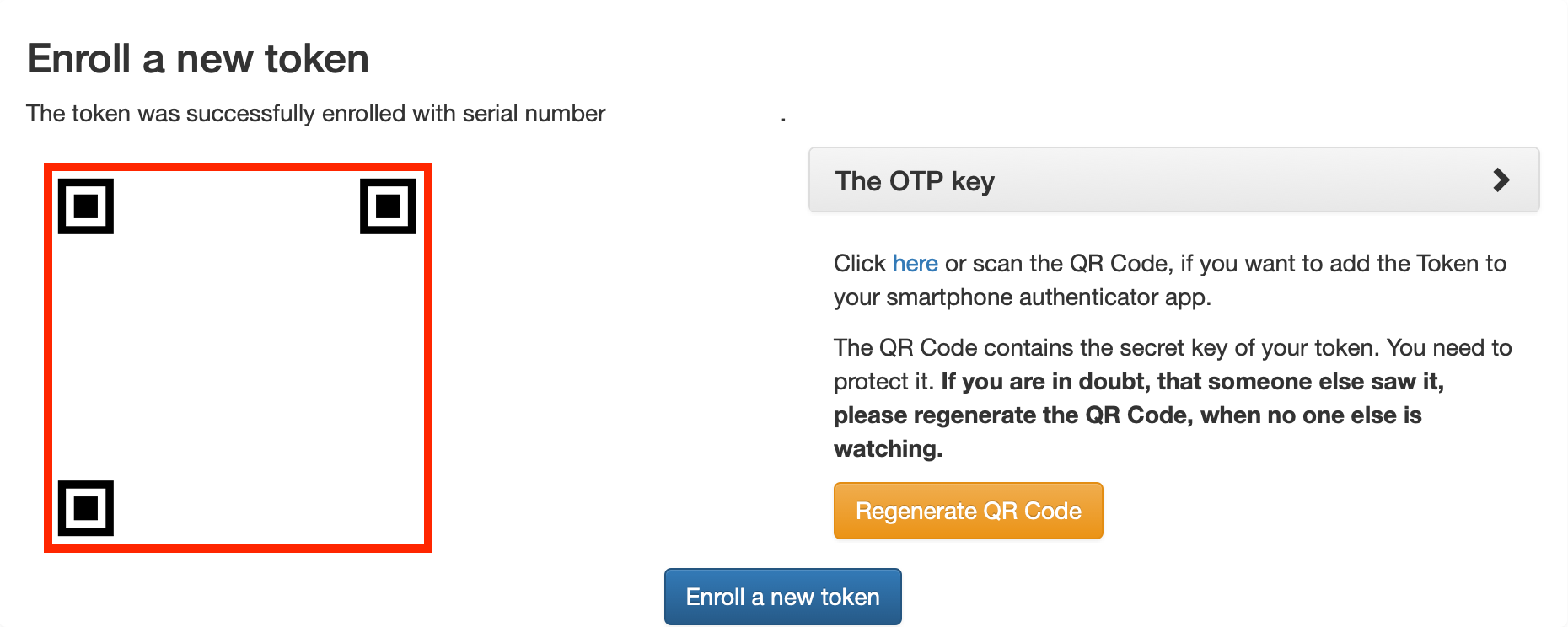
After logging in, immediately add at least one TOTP token to your account:
-
You can then add other registration tokens (PUSH (recommended for recurrent cluster access), TOTP or email). See next section for more details.
Add PUSH to lighten cluster connection
The PUSH option is used to confirm access with a phone without having to enter a code on your computer. It simplifies the procedure and could save time along the day.
Subsequent logins to the portal
After the first session, the portal accepts TOTP tokens only. Email tokens can no longer be used to access the portal — they remain valid only for SSH cluster logins.
Which token to use
| Access type | First login | Every subsequent login |
|---|---|---|
| MFA web portal | Email registration token | TOTP token only |
| Cluster SSH | N/A | TOTP, Push, or email |
Authentication methods overview
- PrivacyIDEA Push notification
- Approve a login request via a push notification on a smartphone. Requires the privacyIDEA Authenticator app (iOS or Android).
- TOTP (Time-based One-Time Password)
- Enter a 6-digit rolling code from an authenticator app. Compatible with privacyIDEA, Google Authenticator, Microsoft Authenticator, or any app supporting the RFC 6238 standard.
- Email token
- Receive a one-time verification code at the registered @mila.quebec email address.
- Hardware token (coming soon)
- YubiKey support (FIDO2/WebAuthn) is planned for a future update.
Troubleshooting
- TOTP codes rejected
- TOTP codes are time-sensitive. Set the smartphone clock to automatic time synchronization to keep codes valid.
- Lost phone or device
- Contact IT Support immediately to reset MFA tokens.
Key concepts
- MFA
- Multi-Factor Authentication (MFA) adds a security layer beyond SSH keys. After setup, every cluster login requires two distinct factors: an SSH public key (first factor) and a dynamic verification code (second factor).
Next step
-
Connect to the Mila cluster via SSH with MFA configured.